Setting Up Your Clearing Account
Before Capehost can send you monthly owner payments, you need to complete two things in Clearing: connect your bank account and submit a W-9 form for tax purposes. This guide walks you through each step.
Part 1: Setting Up Your Bank Account
Step 1: Find Your Invitation Email & Create Your Account
Check your inbox for an invitation email from Clearing (sent by Capehost).
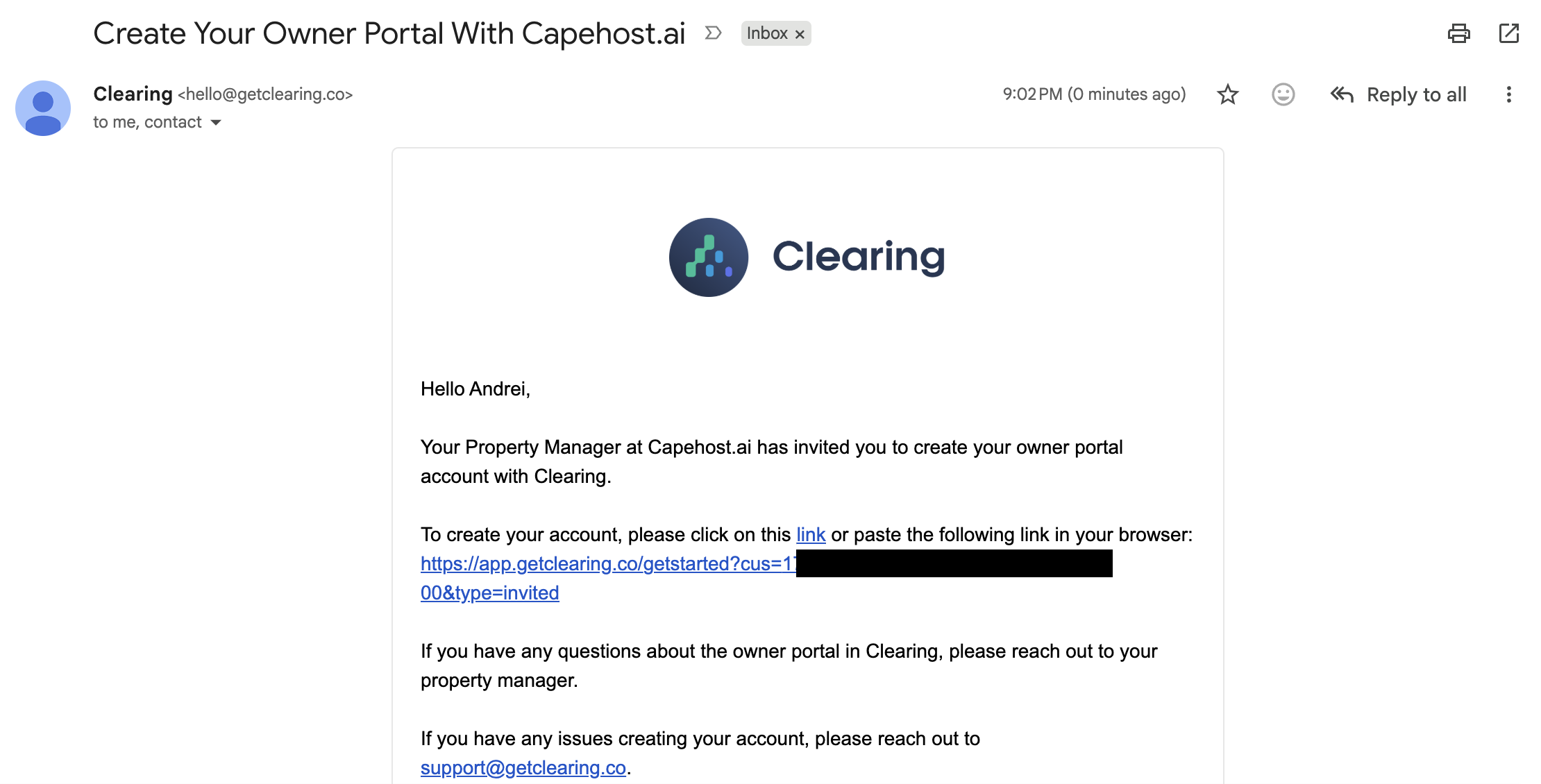
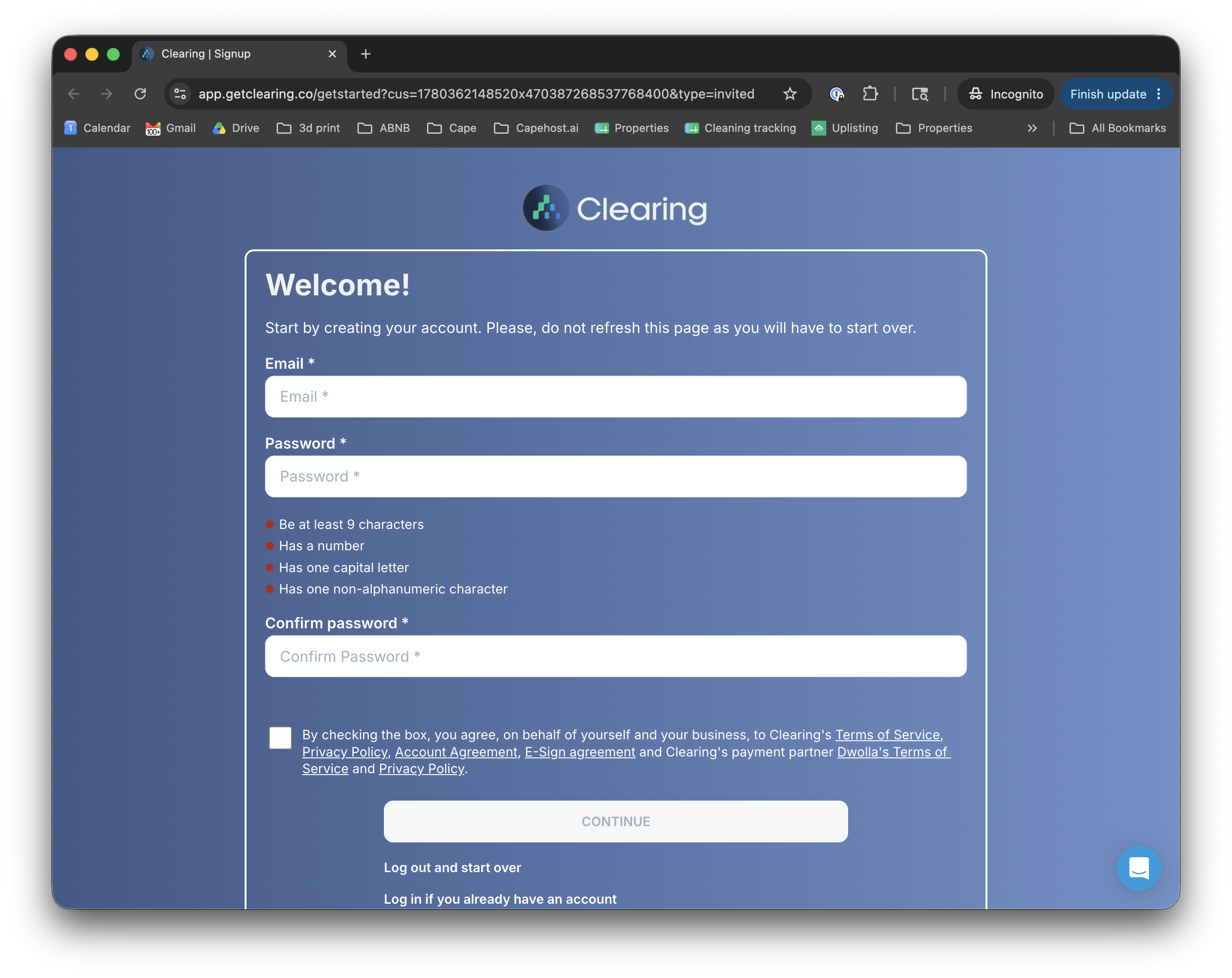
Click the link inside to set your password and create your account.
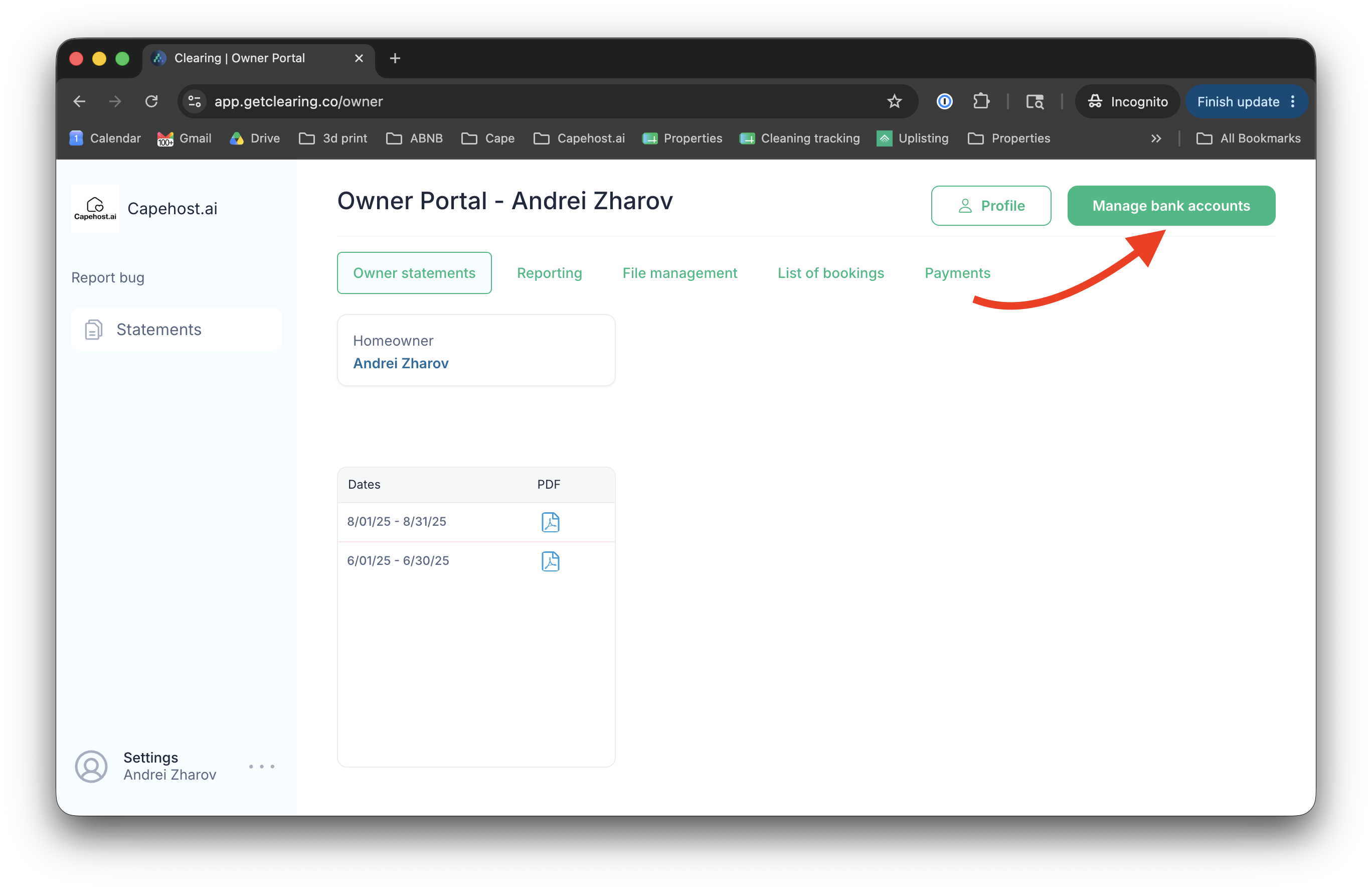
Step 2: Add Your Bank Account
Once logged in to Clearing, go to Settings and select Bank Account. Enter your routing and account number to receive ACH payments from Capehost each month.
Part 2: Submitting Your W-9 Form
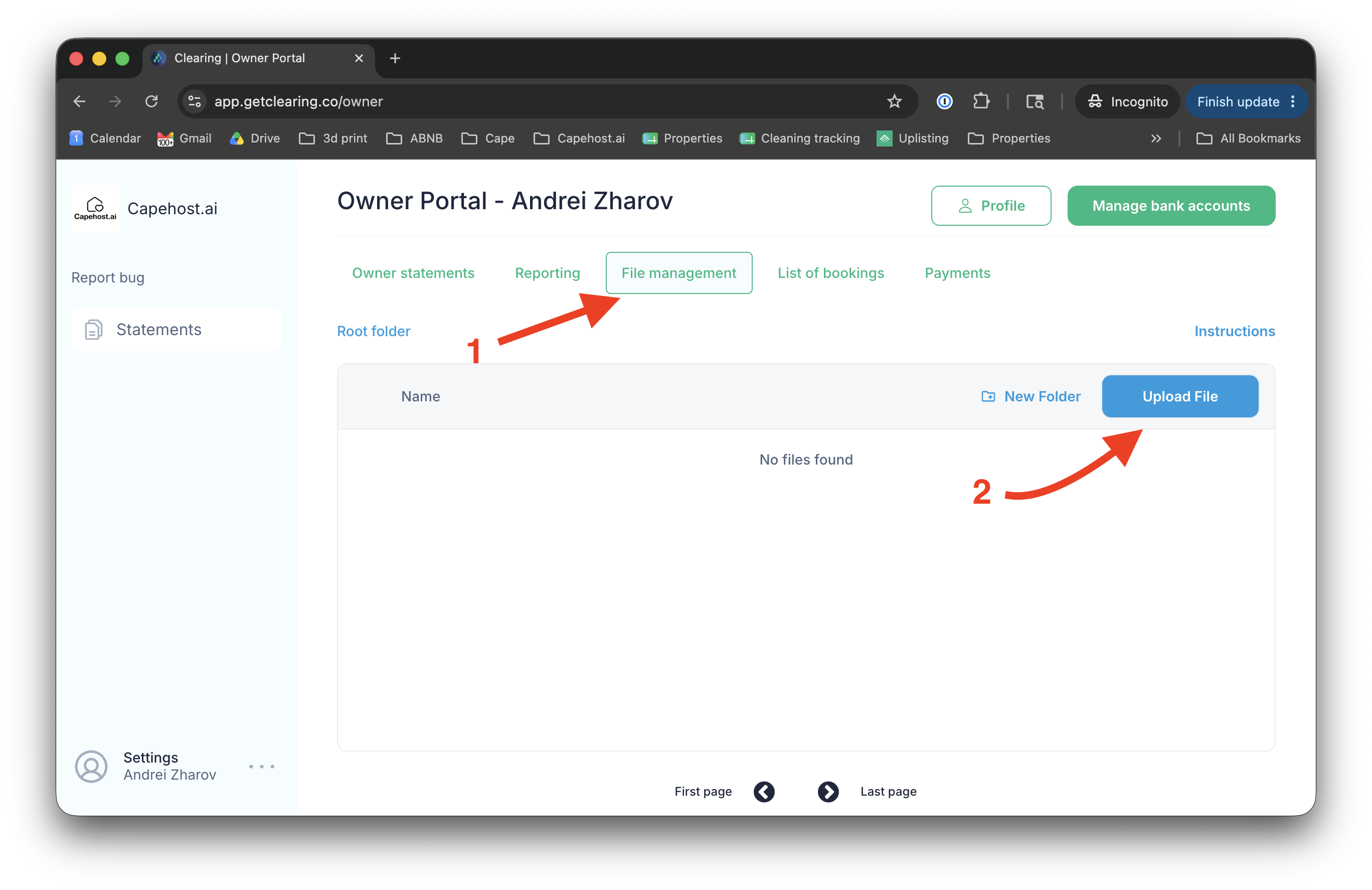
Step 3: Complete Your W-9 & Upload to Clearing
A W-9 form provides your tax information so we can issue you a 1099 form each January. Download the latest W-9 from the IRS (https://irs.gov/pub/irs-pdf/fw9.pdf), fill it out, then upload it to the File Management section in Clearing. Uploading through the File Management section is the most secure way to share sensitive tax documents with us: files are accessible only to you and the Capehost team.